
Dynamic Symbols – SketchUp Plugin for Instant Symbol Animation

Bring your architectural diagrams to life with Dynamic Symbols, a lightweight SketchUp plugin that lets you animate and customize 2D symbols instantly.
Perfect for architects, designers, and educators who visualize diagrams directly inside SketchUp

[FEATURES]

The plugin has 03 core features.

Dynamic symbols library

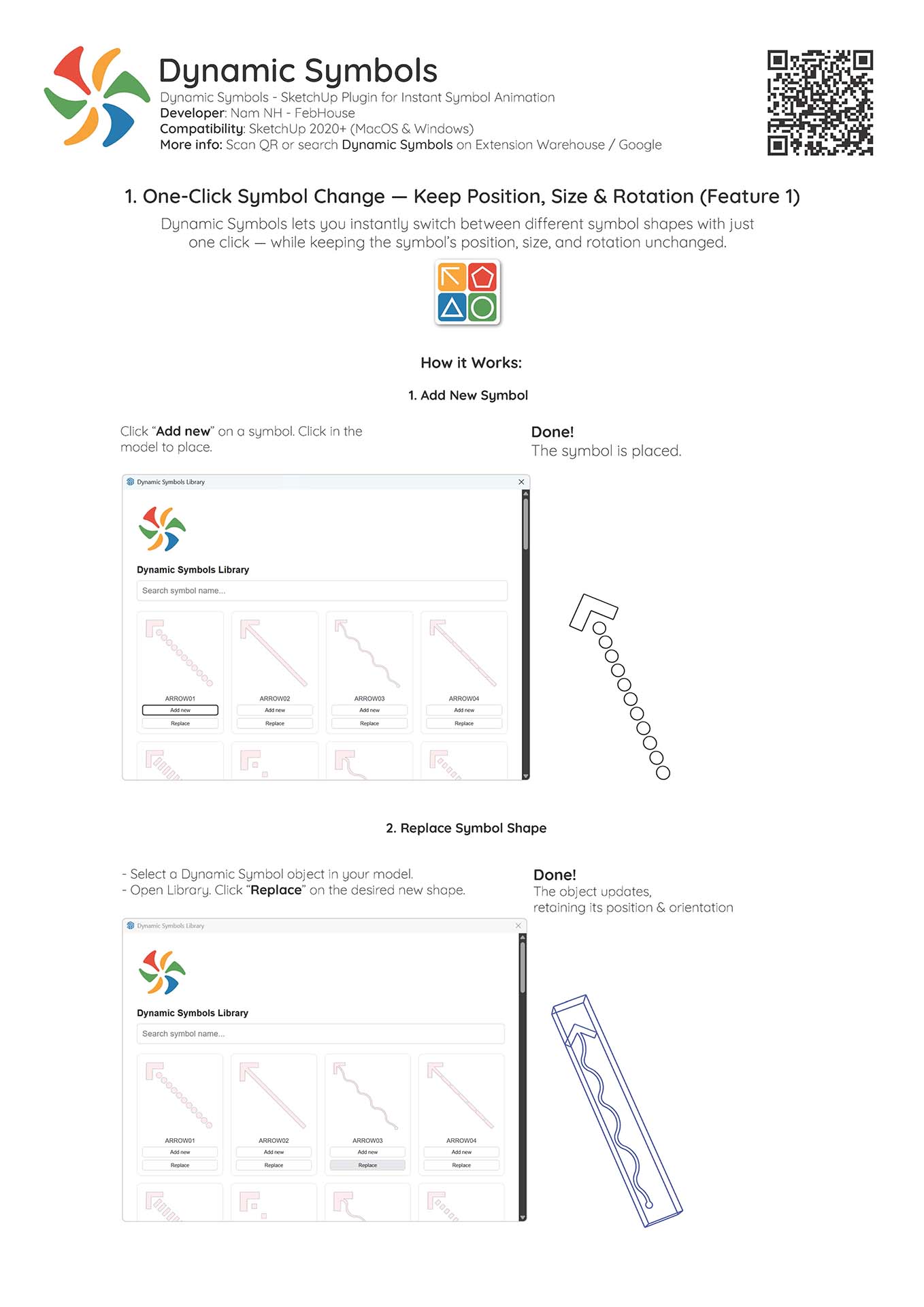
1. One-Click Symbol Change — Keep Position, Size & Rotation (Feature 1)

Dynamic Symbols lets you instantly switch between different symbol shapes with just one click — while keeping the symbol’s position, size, and rotation unchanged..
How it Works:
Step 1: Select any symbol from the toolbar.
Step 2: A dialog box will appear asking if you want to create a new symbol.
Click Yes → The symbol instantly appears at your cursor.
Click No → The command is canceled.
✅ Done! The symbol is placed.
To switch to another symbol, just click a different icon on the toolbar. The selected object updates instantly, while keeping its original position, size, and rotation.

See How It Works ▶️
Select color

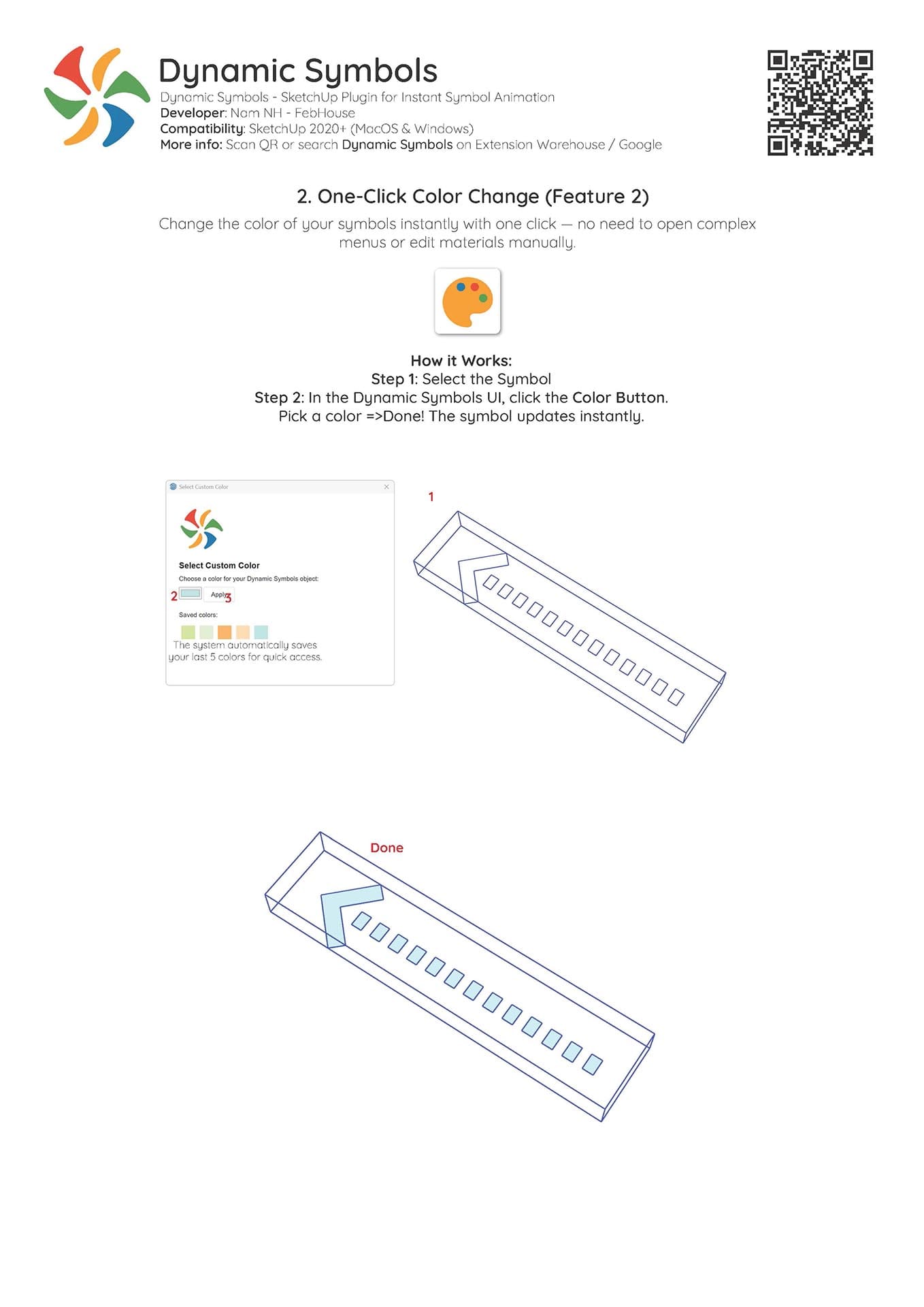
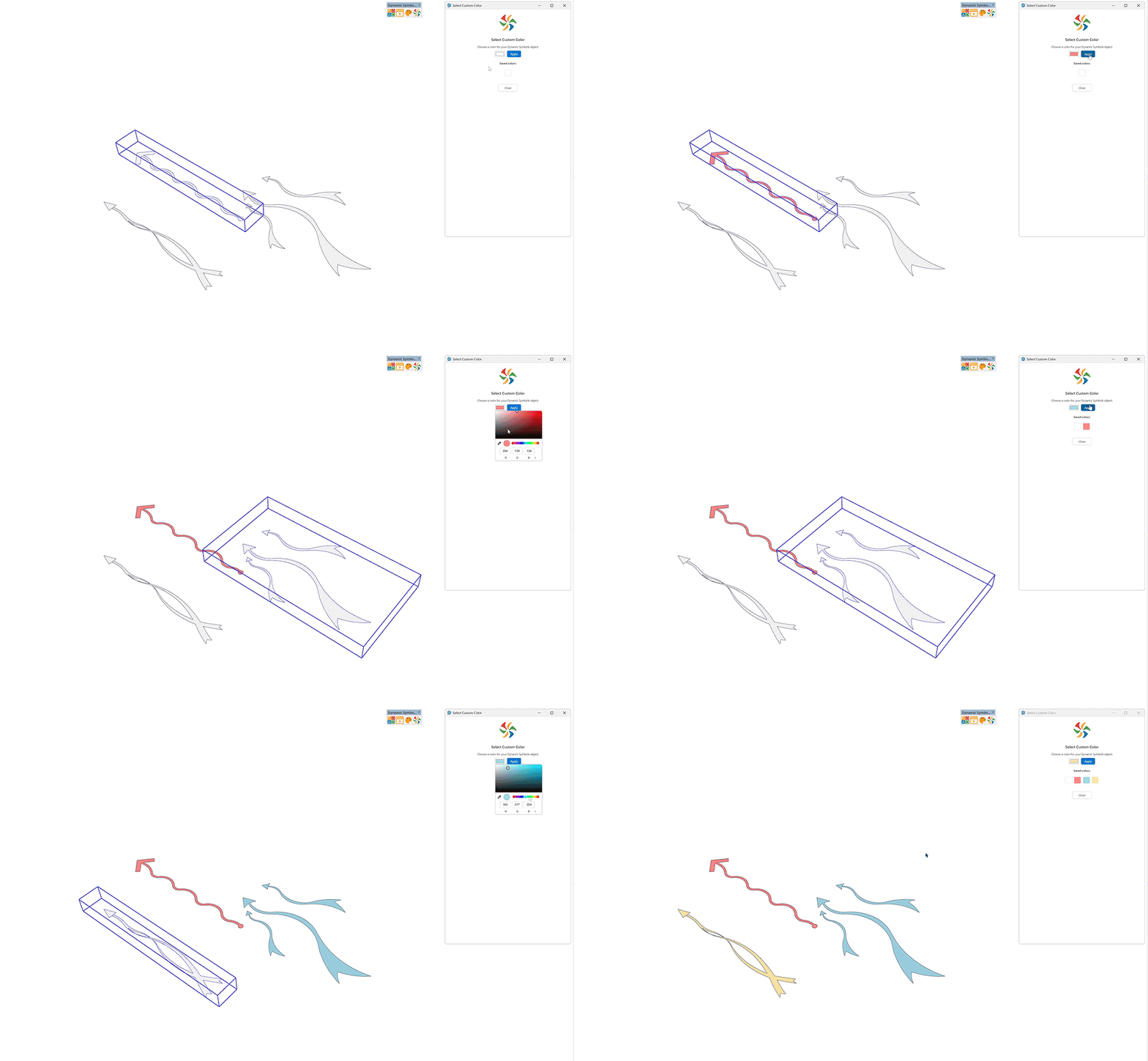
2. One-Click Color Change (Feature 2)

Change the color of your symbols instantly with one click — no need to open complex menus or edit materials manually.
How it Works:
Step 1: Select the symbol
Step 2: In the Dynamic Symbols UI, click the Color Button.
Step 3: Pick a color → ✅ Done! The symbol updates instantly.
💡 The system automatically saves your last 5 colors for quick access.

See How It Works ▶️

animation

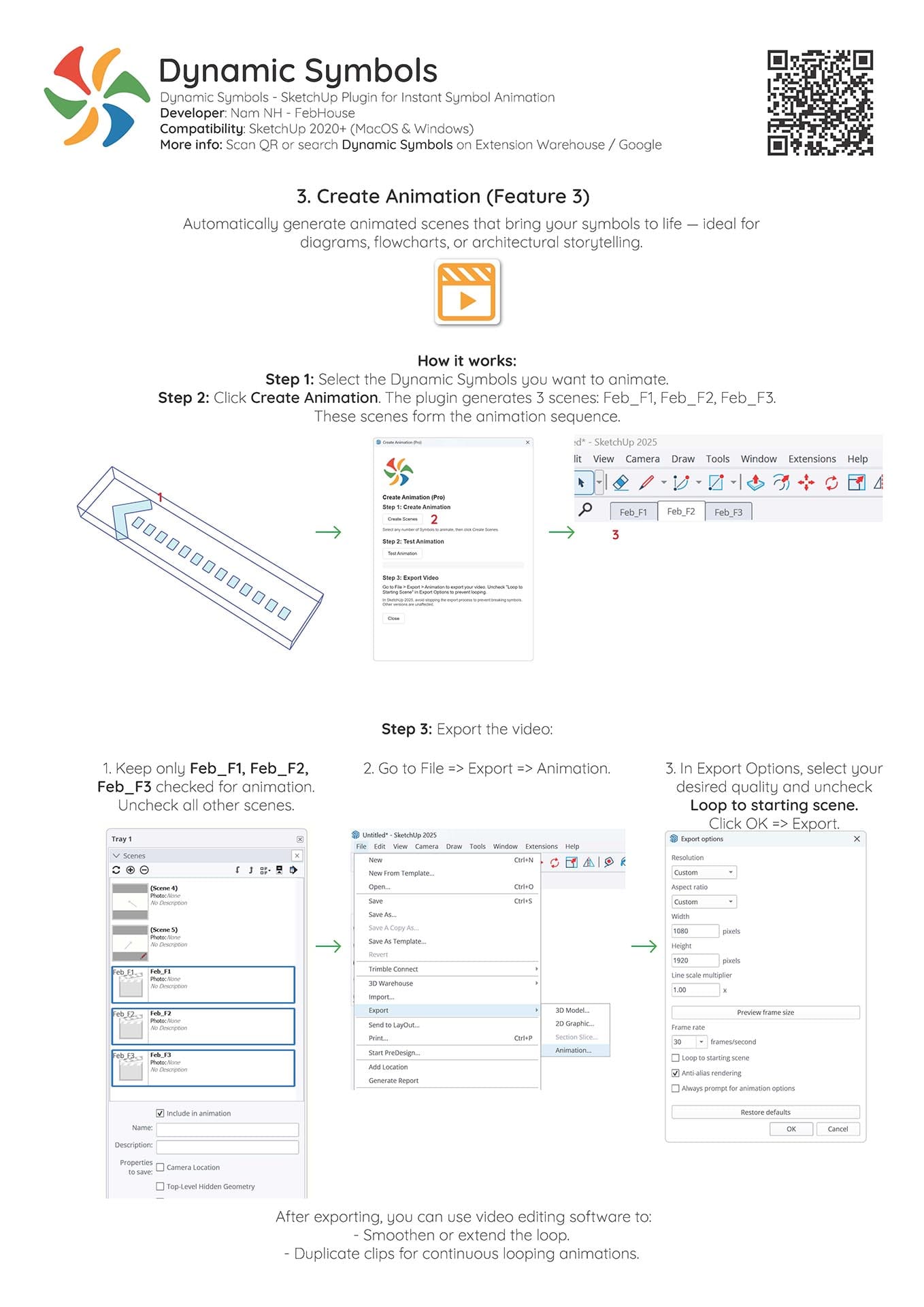
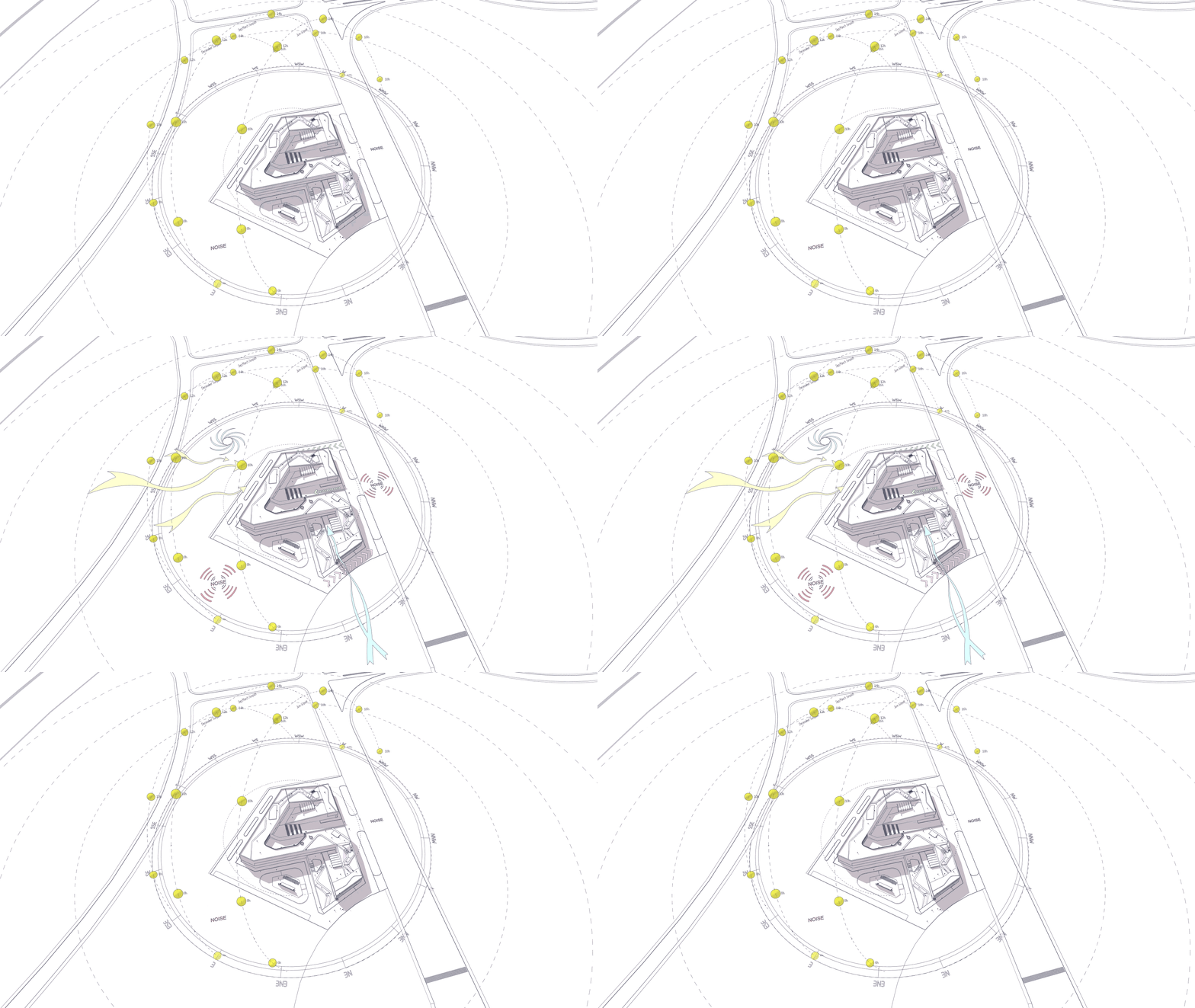
3. Create Animated Diagrams(Feature 3)

Automatically generate animated scenes that bring your symbols to life — ideal for diagrams, flowcharts, or architectural storytelling.
How it works:
Step 1: Select the Dynamic Symbols you want to animate.
Step 2: Click Create Animation. The plugin generates 3 scenes: Feb_F1, Feb_F2, Feb_F3. These scenes form the animation sequence.
Step 3: In the Scenes panel:Keep only Feb_F1, Feb_F2, Feb_F3 checked for animation.Uncheck all other scenes.
Step 4: Export the video:Go to File Export Animation.In Export Options, select your desired quality and uncheck Loop to starting scene.Click OK Export.
💡 After exporting, you can use video editing software to:
- Smoothen or extend the loop.
- Duplicate clips for continuous looping animations.
This feature is included in both Free and Pro versions, but Pro allows you to work with unlimited symbols.

See How It Works ▶️
[PLUGIN CAN DO]

What You Can Do with Dynamic Symbols:

  1. Illustrating circulation
  2. Flow diagrams
  3. Architectural processes
  4. Storytelling in architectural presentations.
  5. and more
[REFERENCE DIAGRAMS]

Explore Diagrams Created with Dynamic Symbols

Dynamic symbols
[DOWNLOAD]

Get Dynamic Symbols:

Dynamic Symbols

Basic tool for students and non-commercial projects.
 

✔️One-Click Symbol Change – Keep Position & Orientation

✔️One-Click Color Change​

➖Create Animation (Limit to 2 symbols)

➖Critical Bug Fixes Only

Available on SketchUp Extension Warehouse

Alternative download via Google Drive (manual install)

Dynamic Symbols (Studio)

The ultimate convenience.
All the power of Pro, fully automated.

✔️One-Click Symbol Change – Keep Position & Orientation

✔️One-Click Color Change​

✔️ Create Animation (Unlimited Symbols)

✔️Auto-Update (via SketchUp)

$12 USD/year (Billed annually)

Test drive the complete workflow risk-free.

Your annual subscription only begins if you choose to keep it.

(Available exclusively on SketchUp Extension Warehouse).

✔  Flexible Annual Plan (Cancel anytime via Extension Warehouse)
✔ Hassle-Free Activation: No license keys to manage. Instantly linked to your SketchUp account.

Dynamic Symbols (Pro)

For professional projects, reports & client presentations.

Lifetime License (Pay once, own forever).

✔️One-Click Symbol Change – Keep Position & Orientation

✔️One-Click Color Change​

✔️ Create Animation (Unlimited Symbols)

✔️Free Lifetime Updates

Only $29 USD (One-time payment)

Buy now on Gumroad

Lifetime license included


7-day money-back guarantee: Contact us if it doesn’t work – we’ll help or refund

One-time activation (Internet needed once)

100% Offline Capable after activation

Try the Free version first – if it works, Pro will too

Dynamic Symbols is developed by Febhouse.
The Free version is officially available on SketchUp Extension Warehouse.

The Studio version offers auto-updates & subscription convenience via SketchUp Extension Warehouse.

The Pro version is distributed via Gumroad, offering lifetime ownership & secure payment.

📩 Support: info@febhouse.com (response within 24h)

Compatibility: SketchUp 2020+ on MacOS & Windows

Versions: 2.3 (20260324 Updated) 

✨ Highlights of this new update:
✔️UI/UX Overhaul: Completely redesigned dialogs (Library, Animation, Color, About) using a new centralized UI framework. Enjoy a cleaner, modern, and unified experience.

✔️Live Color Updates: The Custom Color tool now instantly updates your “Saved Colors” palette when you apply a new color. No need to reopen the window!

✔️Custom Animation Transitions: Added a new dropdown in the Animation UI to easily adjust scene transition times (Off, 1.0s, 2.0s, 3.0s) before testing your animation.


V 2.2 (2025-10-24) 

✔️UI Enhancement: Improved Dynamic Symbols Library

✔️Compatibility Fix:

– Resolved an incompatibility with SketchUp 2025/2026’s new graphics engine when using the Create Animation feature.

– Improved compatibility with macOS.

Please check out the upgraded interface of the official new version in the short video below:  https://www.youtube.com/shorts/1hHj2kHNXec

V2.1 (2025-09-25)
✔️ Dynamic Symbols Library: add more symbols

V2.0 (2025-09-25)
✔️UI Enhancement: Improved Dynamic Symbols Library

V1.0 (2025-07-22) Initial Release

Or install Dynamic Symbols directly from Extension Warehouse in SketchUp.

Here’s a quick step-by-step guide (under 2 minutes):  https://www.youtube.com/shorts/UFhSndoddOk


The Pro version is updated regularly with new symbols — this is the update from 2025-09-05

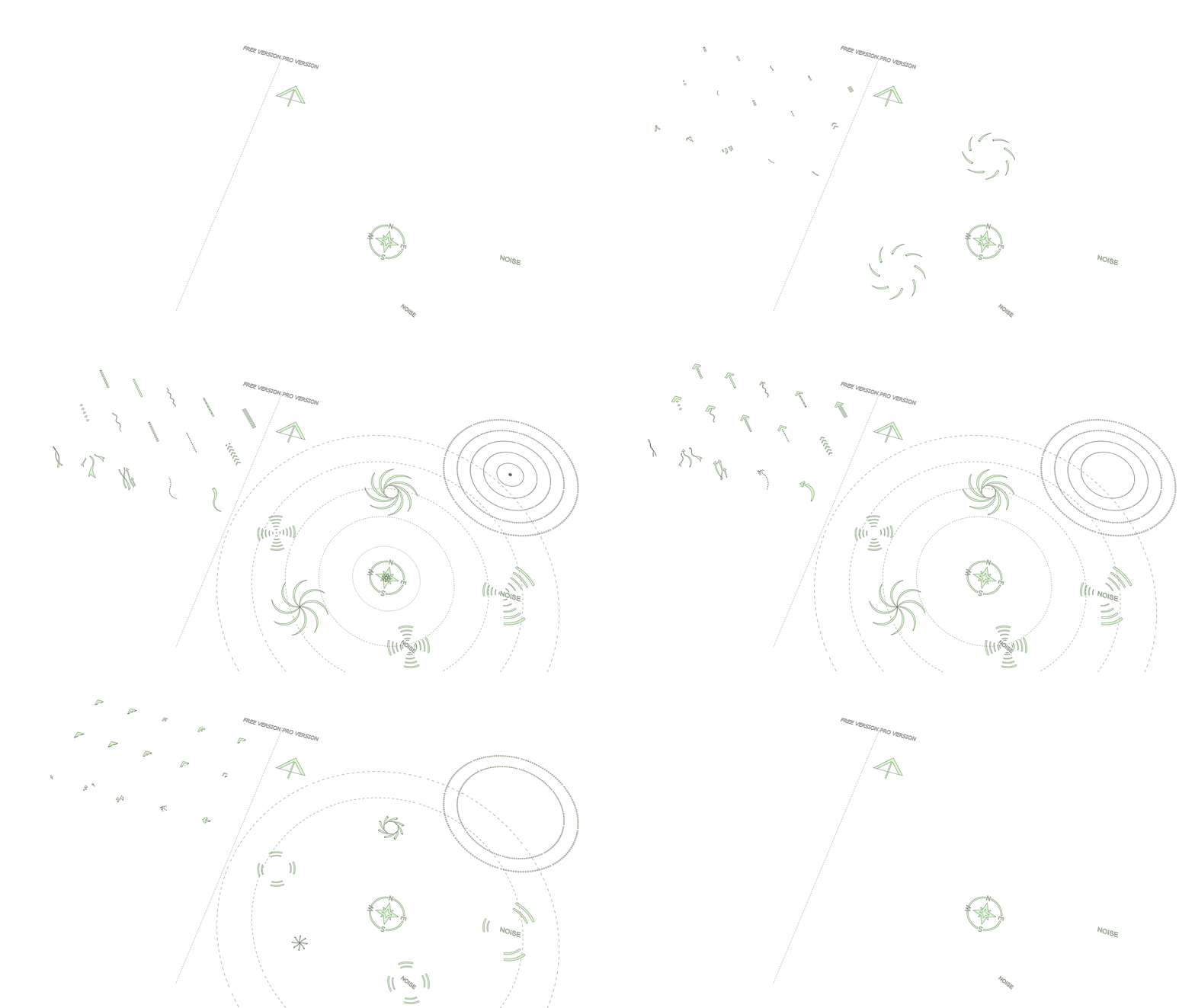
dynamic symbol elements
[TUTORIAL]

How to Use Dynamic Symbols in SketchUp

▶ Watch a 2-minute real workflow demo

See how Dynamic Symbols is used in a real SketchUp workflow to create Animated Diagram

Step-by-step User Guide (PDF)

Download PDF file via Google Drive

Advanced tutorial: Real Project Site Analysis Using Sun Diagram and Dynamic Symbols

Learn how to analyze a real site using Sun Diagram together with Dynamic Symbols for professional projects

[FAQ]

Frequently Asked Questions & Documentation

Have a question? Our AI knows the documentation inside out. Just click the 💬 icon in the bottom right to ask Feb!

Dynamic Symbols is a SketchUp plugin that provides a comprehensive library of graphic diagram symbols for architectural presentations. It allows you to easily drag, scale, and customize symbols directly within your 3D workspace

The plugin supports SketchUp 2020 and newer versions on both Windows and macOS

Yes. Both the Free and Pro/Studio versions are fully licensed for commercial work and client presentations

You can download free sample files at ArchiDiagram.com or via our Instagram (@febhouse_com). These files can be opened in SketchUp without needing the plugin installed, making them perfect for exploring professional workflows

We offer three options to suit your needs:

  • Free Version: Available officially on the SketchUp Extension Warehouse.
  • Studio Version: Offers subscription convenience and auto-updates, managed via the SketchUp Extension Warehouse.
  • Pro Version: A one-time payment for lifetime ownership, managed securely via Gumroad.

Both versions offer the exact same features (e.g., unlimited animations, one-click color changes). The difference lies in the licensing mode:

  • Studio: Designed for convenience. It operates on an annual subscription with auto-updates via the Extension Warehouse.
  • Pro: Designed for long-term ownership. It requires a one-time payment for lifetime access, includes free lifetime updates, and supports offline activation via Gumroad.

You do not need a License Key for the Studio version. The license is automatically linked to the email address associated with your SketchUp account. Simply install the plugin and start working.

  • Studio: Yes, simply log into your SketchUp account on the new computer and install the extension from the Warehouse.
  • Pro: The lifetime license is for individual use. You may install it on multiple personal machines (e.g., a desktop and a laptop), but concurrent use by different people or sharing the license key is strictly prohibited,
  • No. Your Pro license is valid for a lifetime and already includes free updates. The Studio version is simply an alternative for users who prefer subscription-based billing.
  • Free/Studio: Open SketchUp > Extension Warehouse > Search for “Dynamic Symbols” (by Febhouse) > Click “Install” or “Try or Purchase”.
  • Pro: After purchasing, download the ZIP file. Open SketchUp > Extension Manager > Click “Install Extension” and select the .rbz file.

Yes, we offer a 7-day money-back guarantee for the Pro version. We highly recommend trying the Free version first to ensure compatibility. If the Pro version does not work on your setup, contact us for troubleshooting or a prompt refund.

Ensure you are running SketchUp 2020 or newer, and verify that “Extensions” are enabled in your SketchUp Preferences. If the issue persists, please contact our support team.

This error indicates that your network or firewall is blocking the connection required to verify your license. To resolve it:

  1. Ensure your computer’s system date and time are accurate.
  2. Try connecting to a different network (like a mobile hotspot), especially if you are using a corporate network with strict firewalls. You only need to do this once for initial activation.
  3. Verify that you are using an official version of SketchUp

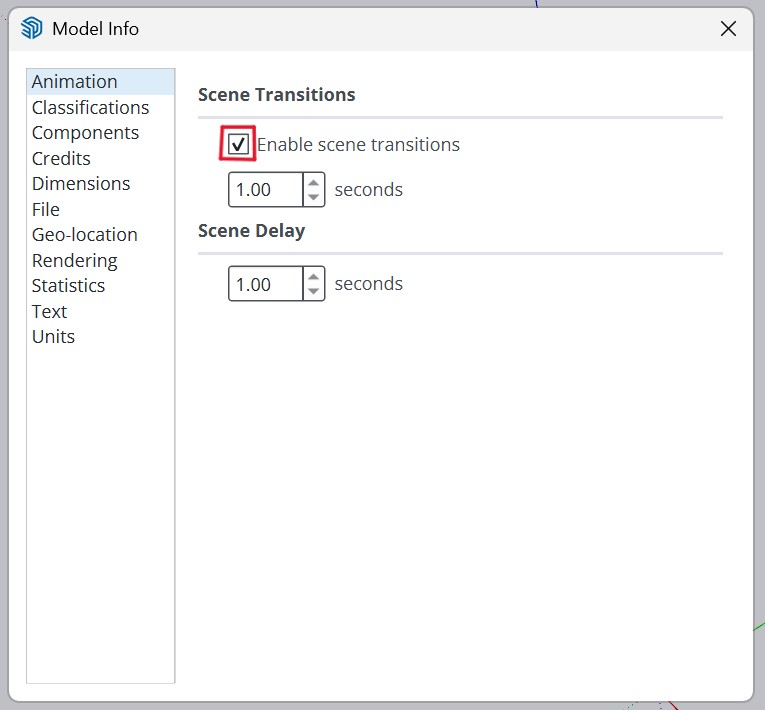
This happens when SketchUp’s scene transitions are disabled. To fix this, go to Window > Model Info > Animation and make sure the “Enable scene transitions” box is checked.
Enable scene transitions

It depends on the version you are using:

  • ​Dynamic Symols Pro & Standard: Yes, you can. These versions can operate entirely offline. 
  • Dynamic Symbols Studio: No. The Studio version requires an active internet connection and a valid Trimble account login for continuous system authentication and licensing.

If you didn’t find the answer you were looking for, feel free to reach out.
We’re here to help.

[ABOUT]

Developed by Febhouse Studio

Dynamic Symbols is developed by Febhouse, Learn more at ArchiDiagram.com

Thanks for watching !

Meet the Creator:

Hi, I'm Nam Nguyen, the developer behind this tool and the founder of the Febhouse ecosystem.
Scan the QR code to connect with me directly on Instagram @febhouse_com, where I share behind-the-scenes development, early updates, and daily design inspiration!
www.instagram.com/febhouse_com/